Convert Image to Text Online: 10 Free Tools to Extract Text From Images
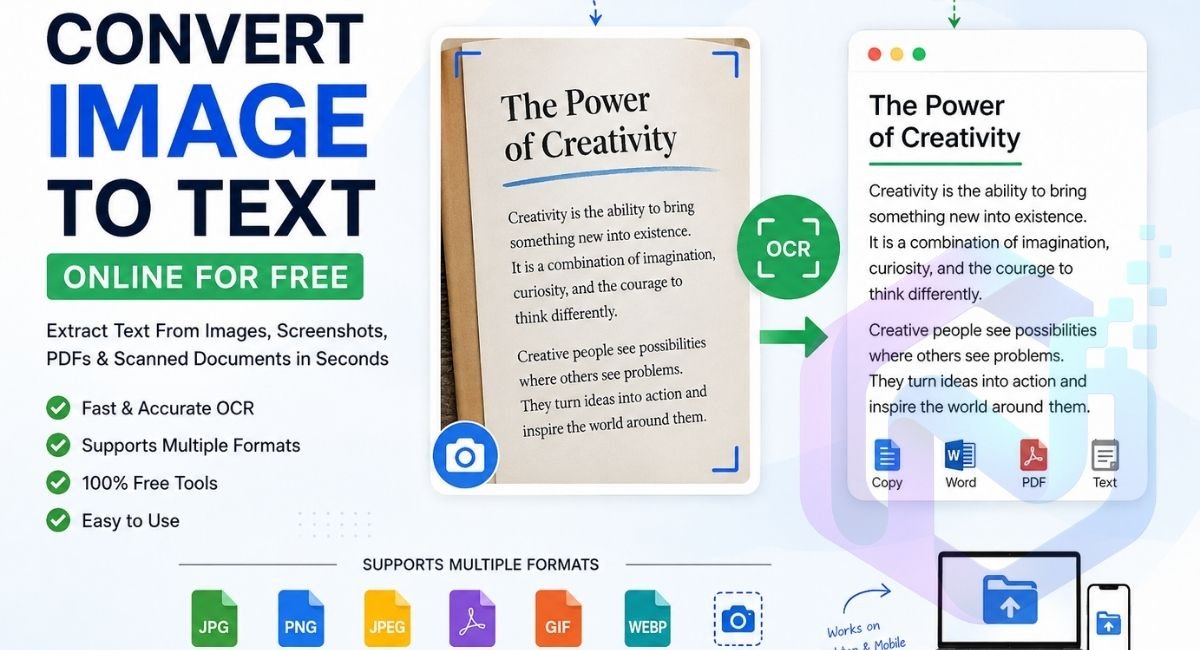
In this guide, you’ll learn how to convert image to text online, how OCR works, which free tools are worth trying, how to extract text from JPG and PNG files, and what you can do when the extracted text contains mistakes. You’ll also learn how to get better results from blurry photos, scanned documents, handwritten notes, and screenshots.
With the right image to text converter, you can turn a picture into editable digital text within seconds. Whether you’re a student digitizing lecture notes, a professional working with business documents, or simply trying to copy text from a screenshot, Optical Character Recognition (OCR) makes the process much easier.
What Is an Image to Text Converter?
Convert your images to text is a tool that uses Optical Character Recognition technology to identify written or printed characters inside an image and turn them into digital text.
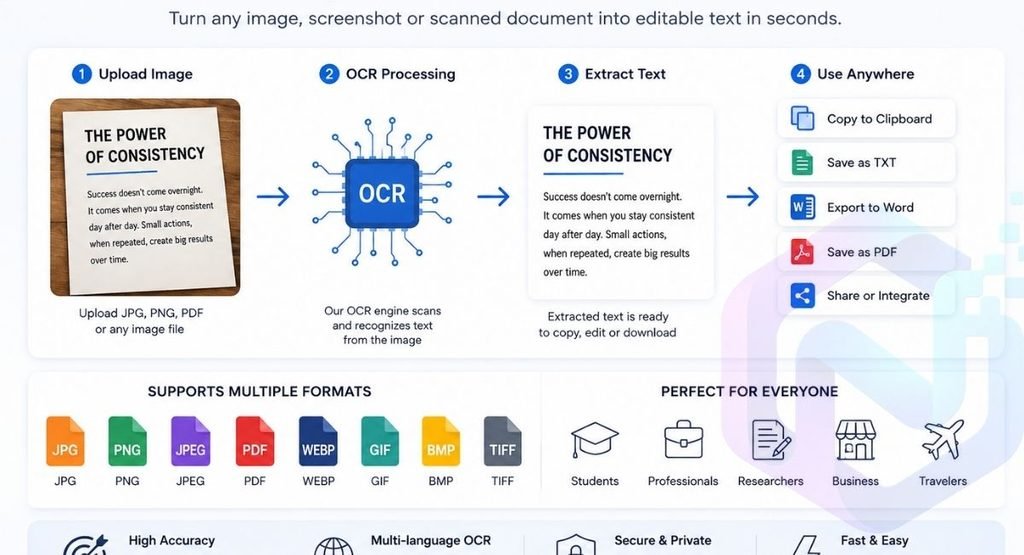
Instead of manually typing the words shown in a photograph, you upload the image to an OCR converter. The software processes the picture, recognizes the characters, and produces text that you can copy, edit, search, or download.
For example, imagine you have a photograph of a textbook page. Normally, you would need to type the important paragraphs yourself. An OCR tool can recognize the printed text and convert the image content into editable text.
This is useful for:
- Screenshots
- JPG and JPEG images
- PNG images
- Scanned documents
- Receipts and invoices
- Forms
- Textbooks
- Lecture notes
- Posters and signs
- Business documents
- Photographs containing text
- Handwritten notes
10 Free Tools to Convert Image to Text
There are plenty of OCR services available, but they are not all designed for the same purpose. Some are better for quick screenshots, while others are more suitable for scanned documents or larger files.
Here are ten options worth considering.
1. Google Lens
Google Lens is a convenient choice when you need to recognize text from a photograph or screenshot.
It is particularly useful on mobile devices because you can work with pictures already stored on your phone or capture text using the camera.
Best for: Quick text extraction, photos, screenshots, and everyday use.
Why use it: It’s convenient and doesn’t require you to learn a complicated workflow.
2. OnlineOCR
OnlineOCR is designed specifically for optical character recognition and document conversion.
It can be useful when your goal is to extract text from an image or scanned document and then work with the result digitally.
Best for: OCR Image and document conversion.
Why use it: It focuses on text recognition rather than general image editing.
3. Online-Convert
Online-Convert provides an online OCR conversion option for turning image files into text.
It supports several common image formats, making it useful when you’re working with different types of files.
Best for: JPG, PNG, and other image-to-text conversions.
Why use it: Useful when you need a straightforward browser-based conversion process.
4. PrePostSEO Image to Text
PrePostSEO offers an image text extractor designed for extracting text from images, screenshots, scanned content, and handwritten material.
Best for: Quick online extraction and different types of image content.
Why use it: Its interface is aimed at users who want to upload an image and quickly retrieve the recognized text.
5. Adobe Acrobat OCR
Adobe Acrobat is particularly useful for people working with scanned PDFs.
A scanned PDF may look like a normal document, but its pages can actually be image files. OCR can recognize the words and create searchable text.
Best for: Scanned PDFs and professional document workflows.
Why use it: It is more suitable when OCR is part of a larger PDF editing and document-management workflow.
6. Microsoft OneNote
Microsoft OneNote can be useful when your images are already part of your digital notes.
For example, a student can insert a photograph of a page or handwritten material and use text recognition features when appropriate.
Best for: Students, researchers, and note-taking workflows.
7. Google Docs
Google Docs can be useful for converting image-based documents into editable content.
This approach is especially convenient if you already use Google Drive and want the extracted content to end up in an editable document.
Best for: Students and people who work with Google Workspace.
8. i2OCR
i2OCR is another browser-based OCR option for extracting text from images.
It’s worth trying when another OCR service doesn’t produce satisfactory results because different OCR engines can interpret the same image differently.
Best for: Simple image OCR tasks.
9. Tesseract OCR
Tesseract is an open-source OCR engine rather than a typical beginner-focused website.
Developers can use it to build text recognition into applications, scripts, and automated workflows.
Best for: Developers and technical users.
10. Built-In OCR on Your Device
Before looking for a dedicated service, check whether your phone, computer, or existing applications already have text recognition features.
Modern devices can often recognize text in photographs and screenshots, which can be the fastest solution for a short piece of content.
Best for: Quick, occasional text extraction.
How to Convert Image to Text Online
The easiest way to convert image content into text is to use an online OCR service. You don’t normally need special software or technical knowledge.
Step 1: Choose a Clear Image
Start with the best-quality image you have.
A sharp photograph with good lighting will usually produce better results than a low-resolution or blurry image. If you’re photographing a document, keep the camera straight and make sure the entire page is visible.
Step 2: Open an Online OCR Tool
Choose a reliable image-to-text service that supports your file type.
Most online converters work directly in a web browser, so you can use them from a computer, tablet, or smartphone without installing additional software.
Step 3: Upload Your Image
Upload the JPG, JPEG, PNG, screenshot, or another supported image format.
Some tools also allow you to drag and drop a file, paste an image, or provide an image URL.
Step 4: Select the Language
If the converter provides a language option, choose the language used in your image.
Language recognition is important when you’re working with multilingual content. Selecting the correct language can help the OCR engine distinguish similar-looking characters.
Step 5: Start the Text Extraction
Click the tool’s conversion or extraction button.
The OCR engine will process the image and attempt to recognize the characters, words, and paragraphs.
Step 6: Check the Extracted Text
Don’t skip this step.
Even good OCR technology can make mistakes. Carefully check names, numbers, dates, punctuation, and technical terms.
Step 7: Copy or Download the Text
Once you’ve checked the result, you can copy the extracted text to your clipboard or download it in the available output format.
This gives you editable text that can be pasted into Word, Google Docs, email, spreadsheets, content editors, or other applications.
Which Image to Text Tool Should You Choose?
There isn’t one tool that is perfect for everyone.
Your choice should depend on what you’re trying to extract.
| Your requirement | A suitable approach |
| Quick photo extraction | Google Lens or built-in OCR |
| Screenshot to text | Built-in OCR or Google Lens |
| Online OCR | OnlineOCR or another dedicated OCR service |
| JPG to text | Online OCR converter |
| PNG to text | Online OCR converter |
| Scanned PDF | Adobe Acrobat or PDF OCR software |
| Notes and documents | Google Docs or OneNote |
| Developer project | Tesseract OCR |
| Quick browser conversion | Dedicated image-to-text website |
If you’re processing confidential documents, however, convenience shouldn’t be your only consideration. Check how the service handles uploaded files before submitting sensitive information.
Convert JPG, PNG, JPEG and Screenshots to Text
One reason OCR is so useful is that text can appear in many different image formats.
JPG to Text
JPG is one of the most common formats for photographs and digital documents.
A JPG to text converter can recognize printed words in a photograph and turn them into editable content.
This can be useful for:
- Photographing textbook pages
- Receipts
- Printed forms
- Business documents
- Posters
- Product labels
For the best results, use a sharp JPG where the text is clearly visible.
PNG to Text
PNG files are commonly used for screenshots and graphics.
A PNG to text conversion can be useful when you have text inside:
- Website screenshots
- App screenshots
- Digital presentations
- Infographics
- Software interfaces
Because PNG images can preserve sharp edges well, they can sometimes work particularly well for screenshots containing clean printed text.
JPEG to Text
JPEG and JPG are essentially two common extensions associated with the same image format family. Most OCR tools that support JPG will also accept JPEG files.
The important factor isn’t simply the extension. Resolution, clarity, contrast, and the quality of the original image matter much more for OCR accuracy.
Screenshot to Text
Screenshots are one of the most practical OCR use cases.
Suppose someone sends you a screenshot containing an address, error message, paragraph, product description, or conversation. Instead of manually typing it, you can use OCR to convert screenshots into text.
This can save considerable time when you’re working with information that cannot otherwise be selected or copied.
PDF Image to Text
PDFs are slightly different because they can contain either actual text or images of text.
If you can select the words in a PDF, OCR may not be necessary. But if every page behaves like a picture, you’ll need OCR to recognize the content.
This process can turn a scanned document into searchable text and, depending on the software, editable content.
How to Extract Text From Images More Accurately
OCR isn’t magic. The quality of the input image has a major effect on the output.
If your first attempt produces strange characters or missing words, don’t immediately blame the converter. Try improving the image first.
Use a High-Resolution Image
Low-resolution images give the OCR engine fewer details to work with.
Whenever possible, use the original image rather than a compressed screenshot or a picture that has been repeatedly resized.
Avoid Blurry Photos
A blurry character can look like several different characters to an OCR system.
If you’re photographing a document, hold your camera steady and make sure the text is in focus.
Improve Lighting
Shadows and reflections can hide parts of letters.
For physical documents, use even lighting and avoid strong reflections from glossy paper.
Straighten the Document
If the page is photographed at an angle, straighten it before processing.
A simple crop or perspective correction can make a noticeable difference.
Crop Unnecessary Areas
If your image contains a lot of empty space or unrelated objects, crop the image around the relevant text.
This helps the image processing stage focus on the information you actually need.
Choose the Correct Language
When an OCR converter allows language selection, choose the language used in the document.
This is especially important when working with multilingual text or languages that contain characters unfamiliar to an English-focused OCR engine.
Review Numbers Carefully
OCR mistakes involving numbers can be easy to overlook.
Pay particular attention to:
- Phone numbers
- Prices
- Dates
- Invoice numbers
- Addresses
- Account numbers
- Measurements
- Product codes
Never assume an automatically extracted number is correct when accuracy matters.
What Can You Do With Extracted Text?
Once you’ve used an image text extractor, the resulting content becomes much more useful because you can work with it like ordinary digital text.
Edit the Content
You can correct spelling, change formatting, rewrite paragraphs, or add information.
Copy and Paste
Instead of manually retyping content, you can copy the extracted text directly into another application.
Search the Content
Searchable text makes it much easier to find specific words or phrases inside digitized documents.
Translate the Text
After extraction, you can send the digital text to a translation tool rather than manually typing the original content.
Summarize Documents
Students and professionals can extract text from documents and then use other AI tools to summarize or organize the information.
Digitize Books and Notes
OCR can help turn printed study materials, textbooks, and lecture notes into digital text that is easier to organize and search.
Automate Data Entry
Businesses can use OCR as part of a larger workflow for extracting information from invoices, receipts, forms, and other documents.
This is where OCR becomes particularly interesting when combined with automation tools: image processing can be one step in a larger document-processing workflow.
Internal link opportunity: Link this section to your related AI Automation guide.
Common Uses of Image-to-Text Technology
The technology isn’t limited to copying a paragraph from a photograph. It has practical applications across education, business, research, and everyday digital tasks.
Students and Teachers
Students can convert textbook pages, printed lecture notes, worksheets, and screenshots into editable study material.
Teachers can also digitize printed resources and organize them into searchable documents.
Businesses
Companies often deal with invoices, receipts, forms, contracts, and other paperwork.
OCR can reduce manual data entry by turning printed information into digital text that can be processed further.
Researchers
Researchers working with old books, scanned papers, archives, and historical documents can use OCR to make information easier to search and analyze.
Content Creators
Content creators can extract text from screenshots, reference images, presentations, and other sources before rewriting or organizing the material.
Of course, extracting text doesn’t automatically give you permission to republish copyrighted content. Always consider copyright and the intended use of the material.
Travelers
OCR can recognize text on signs, menus, tickets, labels, and other physical documents. When combined with translation software, this can be particularly useful when traveling.
Is It Safe to Use an Online Image Text Extractor?
This depends on the specific service and its privacy practices.
Before uploading a sensitive document, check the provider’s privacy policy and understand how uploaded files are handled.
Avoid casually uploading documents containing:
- Passwords
- Identity information
- Banking details
- Medical information
- Private contracts
- Confidential business data
- Personal identification documents
For sensitive material, an offline OCR solution may be more appropriate because the file can potentially be processed locally rather than uploaded to a third-party service.
For ordinary screenshots, public documents, or non-sensitive images, an online OCR service can be a convenient option.
Read Also
Explore More Free AI Tools
Looking for more ways to save time and work smarter with AI? Explore our guide to the 20 Best Free AI Tools in 2026, featuring useful AI tools for writing, productivity, research, content creation, and everyday tasks.
Read the full guide → 20 Best Free AI Tools in 2026
Frequently Asked Questions
1. Is there a free image to text converter?
Yes, several online tools let you convert images to text for free. You can upload a JPG, PNG, JPEG, screenshot, or scanned image, and the OCR tool extracts the text for you. Free tools may have limits on file size, daily usage, or advanced features.
2. How can I convert an image to text online for free?
To convert an image to text online for free, upload your image to an OCR converter, select the language if required, and start the text extraction process. Once the tool recognizes the text, you can copy or download the extracted content.
3. Can I convert an image to text in Microsoft Word?
Yes. You can use OCR tools or supported Microsoft features to extract text from an image and then place the editable text into Word. This can save time when you need to turn a scanned page, screenshot, or photograph into an editable document.
4. Can I convert an image into text with iLovePDF?
Yes. iLovePDF provides tools for working with PDFs and OCR-related document conversion. If your image forms part of a scanned document or PDF, an OCR feature can help recognize the text and turn it into searchable or editable content.
5. Does Google have an image to text converter?
Yes. Google provides text-recognition capabilities through tools such as Google Lens. You can use it to recognize and copy text from photographs, screenshots, documents, signs, and other images.
6. How do I copy text from an image?
You can copy text from an image by using an OCR tool such as Google Lens or an online image-to-text converter. Upload or select the image, let the tool recognize the text, and then copy the extracted content to your clipboard.
7. How can I extract text from an image online?
Upload the image to an online OCR service and start the extraction process. The OCR engine scans the image, recognizes the characters, and converts them into digital text that you can edit, copy, or download.
8. Can I extract text from a blurry image?
Yes, OCR tools can sometimes extract text from blurry images, but the results may contain more errors. For better accuracy, use a higher-resolution image, improve the lighting and contrast, crop unnecessary areas, and make the text as clear as possible before processing it.



1 Comment
20+ Best Free AI Tools in 2026 | The Ultimate Guide · September 7, 2026 at 6:57 pm
[…] text from images, screenshots, and scanned documents. Check out our complete guide on how to convert image to text using free OCR tools and discover the best tools for turning images into editable and searchable […]